Software for commercial flooring contractors
Bid it, win it, build it.
One program for the whole job.
Tight Cut Estimating takes a flooring job from the plan set to the final invoice: take-off on the PDF plans, materials and labor, the proposal, then the schedule, crew, warehouse and billing once you win it.
Built and used daily inside a working commercial flooring company.
How a job runs in TCE
Create the job once.
Everything else builds on it.
Each stage below is a tab group in TCE, with the same colors you see in the program.
Create the job and its folders
Type the project name, address, bid date, GC and estimator. TCE builds the whole job folder for you, ready for every document the job will collect:
Measure the plan set
Import the PDF plans, set the scale, and measure floors, walls, base, transitions and counts. Quantities flow straight into the estimate. See Take-Off →
Price it and send the proposal
Materials, labor, subs, alternates and patch, worked out line by line. The Summary gives the grand total, and the proposal exports with your logo. See Estimating →
Win it and run it
Change the status to Awarded and the job moves to the right folder by itself. Track the schedule of values, change orders, submittals, lead times, notes and every file in the job. See Run the Job →
Order, bill and close it out
Purchase orders, progress billing, invoices, known losses and post-contract numbers, all tied to the same job. See Run the Job →
Schedule the crew and the calendar
Calendar, crew, contacts and your material library, the same in every job and on the Home screen. See Calendar & Crew →
Look around
Real screens, example jobs
Every picture on this site is TCE itself, running on a made-up company with made-up jobs and prices. Pick a tab to look closer.

Built by a flooring contractor, for flooring contractors.
Tight Cut Estimating was built inside a commercial flooring company that was tired of juggling spreadsheets, plan markups, paper calendars and a warehouse nobody could count. Every feature was asked for by the people bidding the work, ordering the material and running the crews.
Take-Off
Measure the whole plan set, not just the floor
Import the PDF plans, name the sheets, set the scale and start measuring. Rooms, base, doors, transitions, wall tile, counts and layout all live on the plan, and every quantity carries into the estimate.
Bring in the plans
The same steps you'd take with a paper set, without unrolling anything.
Pick the pages
Open the plan PDF and tick only the sheets you need. Click a page to see it big, and turn it if it's sideways.
Name each sheet
Type a name like A-101 Finish Floor Plan and pick the scale printed on it. The PDF is copied into the job's Plans folder for you.
Check the scale
Pick the printed scale, or click both ends of a dimension you trust and type its length. Half-size sets come out right too.
Start measuring
Measure a second dimension to double-check, then trace rooms. Roll the wheel to zoom, or pop the plan out onto a second monitor.
A whole floor, room by room
Click the corners of a room, or let Auto Room find them: click inside the room, then click each wall. Each room shows its square feet and perimeter.
- Snap grabs the wall lines on the plan and the corners of rooms you already drew, so shared walls line up.
- Change it by dragging: move a corner, slide a whole wall, or pull a new corner out of one.
- Copy and paste rooms for repeated units.
- Any finish: carpet tile in ashlar, carpet plank in herringbone, plank, VCT with a border, sheet vinyl, rubber and walk-off, each in its own color.
Complex floors
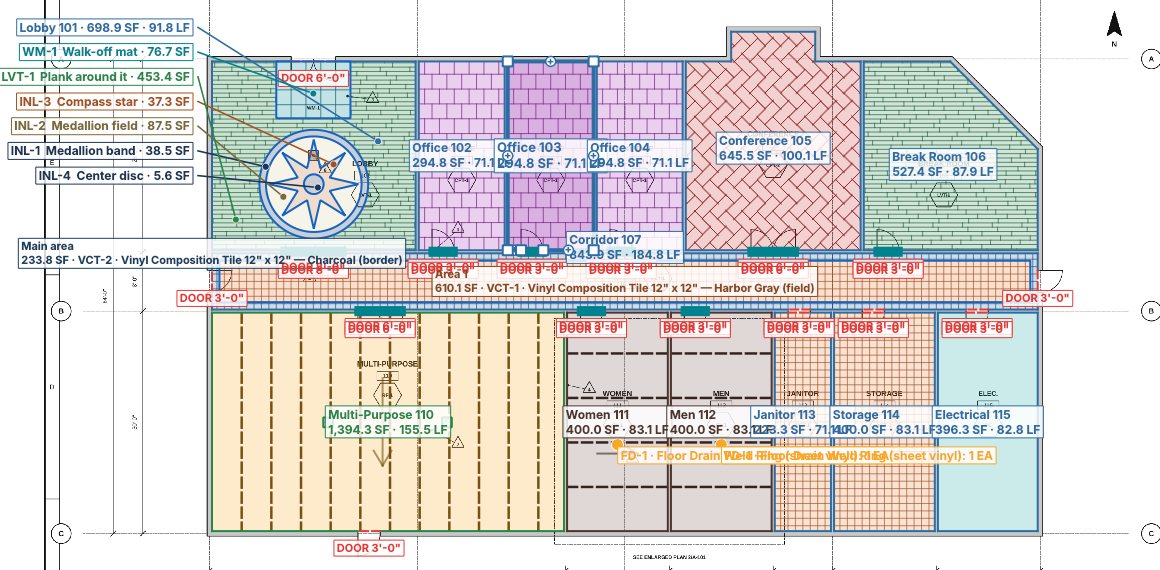
Inlays, medallions and curves, measured piece by piece
Draw shapes inside a room, and shapes inside those shapes. Curves follow the radius. Each piece becomes its own area with its own material, so a lobby medallion comes out as real quantities for every color, with the plank around it figured on what's left.
- Nested shapes: an outer band, a field, a compass star and a center disc, each cut out of the one around it.
- Radius and angles: circles, arcs, points and odd angles, traced right on the plan.
- Every piece priced: each inlay color gets its own square feet and its own line in the estimate.
- On the shop drawings too, so the crew sees exactly where it goes.
Click a room, see everything in it
Pick a room and TCE lists its materials, the net perimeter after doors, the base corners, and how many pieces the layout takes, cuts included. Tick a material to put it in the room.
- Layout direction for this room, or the material's default.
- Full wall height for rooms that get wall finish.
- Inside and outside corners for preformed base corners.
- Transition sticks counted from the doorways.
It knows how each material goes down
Every material gets a few settings once, and the take-off figures what you actually have to buy, not just the floor area.
Waste
Added on top of what you measured. TCE suggests a waste for each layout pattern.
Tile and plank layout
Piece size, direction and pattern: straight, ½ offset, ⅓ offset, random, herringbone or basketweave. The room shows the grid, centered with even cuts, and the piece count.
Roll goods
Sheet vinyl and broadloom get seams, drops and run direction laid out to buy the least material.
No slivers
Tile layouts are centered with even cuts at both sides, never a sliver under half a piece.
Base
Perimeter less doors and casework runs, with its height and the corners. Sold by the coil or box? It comes out in pieces.
Sticks
Transitions and trim are cut from sticks with the least waste: three 3' doorways make one 9' stick.
Boxes and pails
Sold by the box, pail or pallet? Enter the coverage and the total comes out in boxes.
Its own color
Every room with that material shows its color on the plan, so you can see what's missing.
The details that cost you money
Coved sheet vinyl, figured the way you buy it
Pick the cove height and TCE runs it up the walls for you: in the square feet, in every drop, and in the yardage you order. Here's a restroom with 6" flash cove.
- Pick the cove height: flat lay, 4", 6", or type your own.
- Cove on the real walls only. Doorways and cabinet runs are left out. This 400 SF room becomes 441.5 SF with its 6" cove.
- Drops and seams laid out to buy the least material, with the roll width, roll length and trim per drop you set. Each drop gets the cove at both ends.
- What you actually buy: 6 drops, 4 seams, 543 SF off the roll. Sell it by the yard and the total comes out in yards.
- Cove cap measured on the coved walls only, cut from 10' sticks.
- No double counting: base steps aside wherever the floor coves up the wall.
- Floor drains counted for their weld rings.
And the little things nobody wants to count
Doorways count once
A doorway between two rooms is counted once, even though both rooms touch it.
Base corners
Inside and outside corners are counted for preformed corners.
Columns add base
A column comes out of the floor, and its outline is added to the base.
Long rooms
A drop longer than a roll gets an end seam, and the rolls are counted.
Wall tile and base
Base steps aside where wall tile runs down to the floor, and doors come out of the wall tile.
Waste by pattern
Herringbone wastes more than straight lay. TCE suggests the waste for the pattern you pick.
Your edits are safe
A quantity you changed by hand isn't written over when the take-off sends its numbers.
Locked bids stay locked
Auto-update never changes a bid you've locked.
The real-world cases are covered
Two floors in one room
Split a room with a line, or draw a border, field or inlay inside it. Each area gets its own material and layout.
Columns and internal walls
Draw a hole. It comes out of the floor and its outline is added to the base.
Bump-outs and notches
Add on or cut off part of a room without redrawing it.
Doors and casework
Drop doors on the walls at any width. Mark cabinet runs as no-base. A doorway between two rooms counts once.
Transitions
Click a doorway or the line between two floors and pick its transition.
Counts
Click each floor box, drain or weld ring on the plan.
Measure
A scale ruler for any run, with each leg labeled and the total added up.
Every sheet
Each sheet keeps its own scale, and totals add up across the whole set.
Wall tile on the plan and on the elevations
Click a wall with Wall Finish and it gets tile full height, or pick 4', 6', 7' or 8' for a wainscot. On elevation sheets, trace each wall face: wall tile by the square foot and accent bands by the linear foot.
Send the quantities to the estimate
Material Totals shows every material for the whole job: what you measured, the total with waste in the unit you buy it in, and what the estimate has now.
One click
Send Quantities to Materials shows a checklist of every change first. Only the quantities change; your prices stay put.
Your edits are safe
A quantity you changed by hand in the estimate starts unticked, with a warning, so it isn't written over.
Or keep it in step
Turn on auto-update and the estimate follows the take-off as you draw. It never changes a locked bid.
Shop drawings for the crew
Turn the take-off into clean printed plans: the plan faded in the background, every finish drawn and tagged, a material legend, and a title block with your logo.
- Paper from letter up to 30 × 42.
- Tile and plank layout lines, roll seams and run direction, wall finish heights and door openings.
- Amounts off unless you turn them on, so you can hand it out without your numbers.
- Print it or save a PDF.
Estimating & Proposals
Every line priced. One number you can sign.
Every material and every labor item is its own card, with its own surcharge, tax and profit. The Summary adds it all up, and one click turns it into a proposal with your logo on it.
Material cards
One card per material, grouped by category, with a colored stripe for each category. Type, pick or click anything on it, and the math underneath updates as you go.
- Spec, Category and Name, like VCT-1 · VCT · Vinyl Composition Tile 12" x 12". The take-off uses the spec.
- Qty, Unit and Price: square feet, yards, linear feet, boxes, pails, pieces.
- SC %, Tax % and Profit % on every line. Set profit for the whole tab at once, or pin one card so it keeps its own.
- Billed is what the customer pays for the line. Click = ? to see the math step by step.
- Flat Add for a straight pass-through cost, with no surcharge, tax or profit.
- Data sheets attach to the card, and one click saves the card to your library.
Try it
Furnish, Install, or both. The proposal writes itself.
Every material card has a Furnish box and an Install box. Click them below and watch the Scope of Work on the proposal change. This is how it works in TCE.
Click Furnish and Install ↑
SCOPE OF WORK
Furnish and Install LVT-1 Luxury Vinyl Plank 7" x 48" — Pinewood in Lobby 101
Furnish and Install RB-1 Rubber Base 4" Coved — Black
Both ticked
"Furnish and Install …" You supply it and put it down.
Furnish only
"Furnish …" You supply it and someone else installs it.
Install only
"Install owner furnished material …" The owner supplies it and you put it down.
Neither
The line stays off the proposal but is still priced in the bid. That suits things like glue and patch. Words you typed after a line, like room numbers, stay with that material and come back when you tick it again.
Labor cards
Labor works the same way, with your rate per unit, workers' comp and labor profit on every card.
- Copy All to Labor on the Materials tab makes a labor card for every material, with the same name, quantity and unit. Then you just type the rates.
- WC % is added on top of the labor cost, and Profit % goes on labor plus WC.
- Labor Profit % at the top sets every card at once. Pin one to keep its own.
- Send one line across between Materials and Labor with → Lab and → Mat.
Find anything on a big bid
A community center can run twenty materials and twenty labor lines. These keep it under control.
Category chips
Each category shows its count and dollars, like CARPET SQUARES · 3 · $12,941. Click one to show only that category.
Search
Type part of a name, spec or category.
No price · No data sheet
One click shows every line still missing a price or a data sheet. It's a quick check before the bid goes out.
Fold and reorder
Fold a category to one line. Drag cards into order, and the proposal follows the same order.
Cards or list
Prefer rows for typing a lot of quantities fast? Switch to the list view. TCE remembers which one you like.
Copy a card
Copy a card to start the next one, or delete one you don't need.
Patch
Bags of patch and the price per bag sit at the top of every job, in or out of the total.
Addendum
Tick how many addenda you've seen, and the proposal says so.
Your price book and a product catalog
Materials you use again and again live in your library with their price, unit, spec and data sheet, so you don't type them on every bid.
- Add to a job in one click with + Mat or + Lab from inside the job.
- A built-in product catalog of commercial flooring lines, with every color. You add only what you use and type your own price.
- Pick the color when it goes on the job, or mark it Color TBD.
- Kept up to date: new colors show up by themselves, and a discontinued color is flagged before you bid it.
Alternates and subs
Alternates are priced with their own material and labor cards, figured exactly like the base bid, and print under the price with their own number.
- Include in Total when the customer takes an alternate. It moves into the base bid and the scope of work, and the card turns green. Untick it and everything goes back.
- Subs: the scope, the sub's name, their quote and your markup. Tick In Bid to put it in your total.
The number you sign
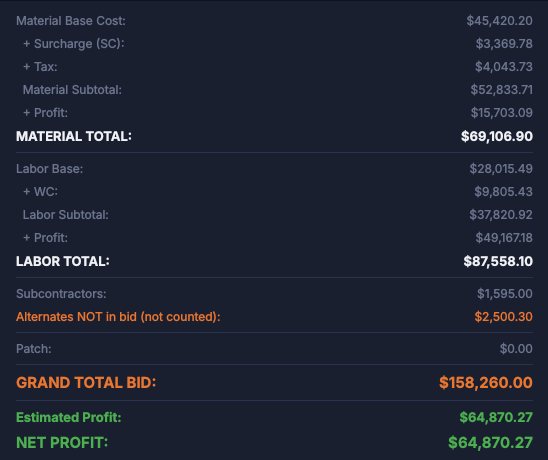
The Summary is the whole bid on one page: material cost, surcharge, tax and profit; labor, workers' comp and profit; subs and patch; and the grand total bid with your estimated profit.
- Alternates not taken are shown so you can check them, but aren't added.
- Every line is listed next to the totals.
- Lock the bid when it's signed, so you always know what you bid.
The proposal fills itself in
TO, FROM, DATE and RE come from the top of the job. The Scope of Work comes from your Furnish and Install boxes, the price from the Summary, and alternates print under it.
- Type right in the scope, like in Rooms 101–104. What you type stays with that material when the estimate changes.
- Exclusions have their own box and print once, under the price.
- Your standard terms are saved once in Settings and start every new job. Change them for one job if you need to.
What leaves the office
A proposal your GC can read, and a breakdown you can check
One click on the Summary screen makes each of these as a Word document, saved straight into the job's Proposals folder. Your logo is on every document, and your own terms print on the proposal automatically.
Example job, example wording and example numbers. The terms on your proposals are the ones you save in TCE. Shown as exported to Word; save it as a PDF from Word to send it.
Your brand, not ours
Put your company logo in once. It shows up everywhere.
Add your logo to your account and TCE uses it from then on. There's nothing to paste into each bid.
- Upload it once in Settings: PNG or JPG, and pick left, center or right.
- Every document you export carries it at the top: bid proposals, estimation summaries, change orders, invoices, purchase orders, submittals, schedules of values and shop drawings.
- Inside TCE, it replaces our logo on the home screen and across the top of every job.
- Shared with your office. It's saved with your company, so everyone on the account gets the same logo.


Run the Job
Win it, run it, bill it, from the same job
Change the status to Awarded and the job moves to the right folder by itself. Everything after that, from the schedule of values to the last invoice, starts from the numbers you already bid.
Change orders, priced like the bid
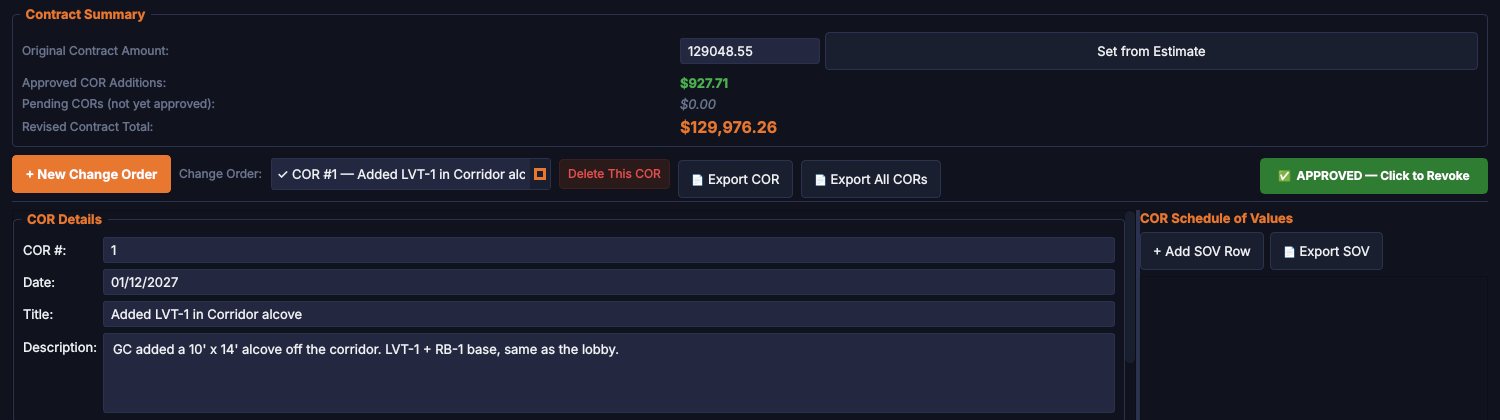
Each change order gets its own material and labor cards, figured exactly like the estimate, so extra work carries your surcharge, tax and profit.
- Contract summary: original contract, approved and pending changes, and the revised contract total.
- Mark it approved when the GC signs, and it's added to the job's total.
- Choose the wording each line prints with, or keep a line off the printed change order.
- Export one or all as Word documents, with your logo on every page.
Schedule of values in a few clicks
Pull the lines straight from your materials and labor, then change the wording and the dollars. Percent of contract is figured for you.
- Sections group lines by trade.
- Roll Into folds a small line into a bigger one, so the GC sees fewer lines.
The job diary and the job's files
Every phone call, site visit and "GC said…" goes in Notes with the date and time. Pin the important ones and they show on everyone's dashboard.
- Files shows the job's folders right inside TCE. Drag files in from Windows or an email.
- Organize Main Folder sorts loose files into the right folders, and shows you the list first.
- Link a file kept somewhere else without copying it.
Purchase orders and invoices
Order material and bill the GC from the same job, with your logo on every page.
- PO numbers never repeat across jobs. TCE picks the next one for you.
- Side mark prints near the top, so the supplier knows how to mark the boxes.
- Vendor and ship-to come from your contacts and the job address.
- Invoices for each pay app, numbered in order.
Know if the job made money
Billing tracks the contract, every pay app and whether it's paid, and the job's real expenses. You see net profit and margin as the job goes.
- Known losses, like damaged material or a back charge, come off the profit so the number stays honest.
- Lock the bid when the contract is signed. Your bid is frozen, and an Actual copy tracks real quantities and prices against it.
- Finance on the Home screen adds up every job you've won: contract, collected, profit and margin by job and by month.
Calendar & Crew
See the whole month and every installer at a glance
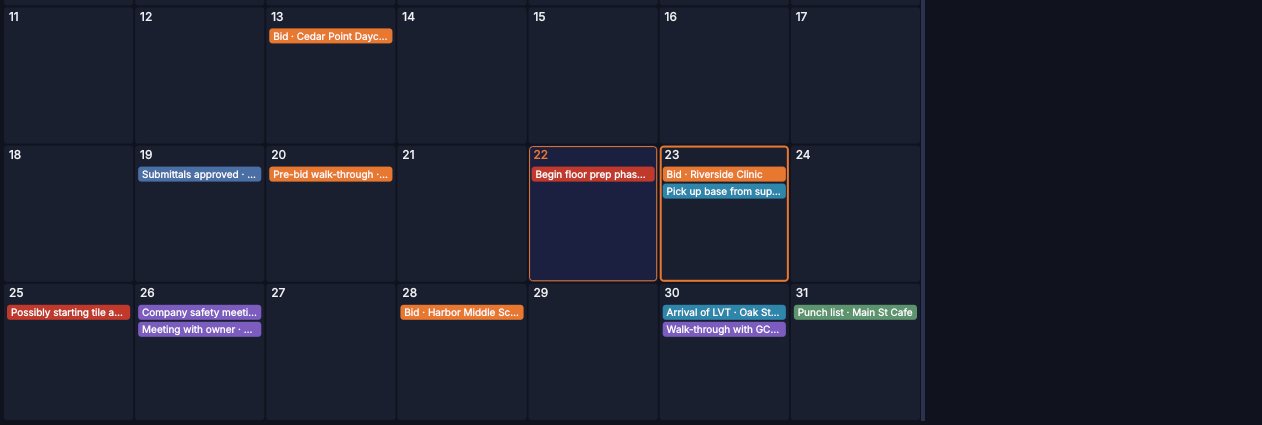
Bids due, start dates, deliveries and walk-throughs from every job land on one company calendar. The crew board shows who is on which job, every day of the week.
One calendar for the whole company
Every job's dates, every bid date and your company events, on the days, as short colored labels. Hover over a day to read it all, or click it for the full notes.
Colors by kind
Bid due orange, start red, delivery blue, meeting purple, finish green.
Straight from the jobs
Type dates in a job's own calendar, one thing per line. Each line shows here too. Nothing is entered twice.
Bid dates by themselves
Every bid you're still working on shows its bid date as Bid · job name. Mark it Bid Sent and the reminder comes off.
Open the job
Click a day, then Open job → takes you to that job's calendar on that day.
Company events
Safety meetings, holidays, supplier shows: anything not tied to one job.
The next 14 days
With no day picked, the side shows what's coming up.
Month or list
Switch to a list, turn bids, job dates or company events on and off, and search.
On the dashboard
Dates in the next 30 days show under Alerts & Upcoming when you sign in.
The crew board
Like the whiteboard in the shop, with names down the side and days across the top. Click a person's box under a day to put them on a job.
- Week, 4-week and 3-month views, so you spot open days before you promise a start date.
- Shop days too, like pulling material.
- Each installer has a role, phone, email and notes, and goes in your contacts.
- Same board on the office PCs and the tablet.
Your next bids, on top
Bidding Next lists every bid that's still coming up, soonest first, with a countdown: bids tomorrow, bids in 6 days · Wed. Bids whose date has passed drop below it, and bids you've sent move to their own Bid Sent group.
- Grouped by status: Bidding, Bid Sent, Awarded, In Progress, Complete and more.
- Search by job name or address, or show one status.
Your morning look at the business
The dashboard shows bids out, jobs won and jobs being installed, the jobs you opened last, what's coming up in the next 30 days, who's working where, your newest emails, and every note someone pinned.
Warehouse
Know what's on the shelf before you order
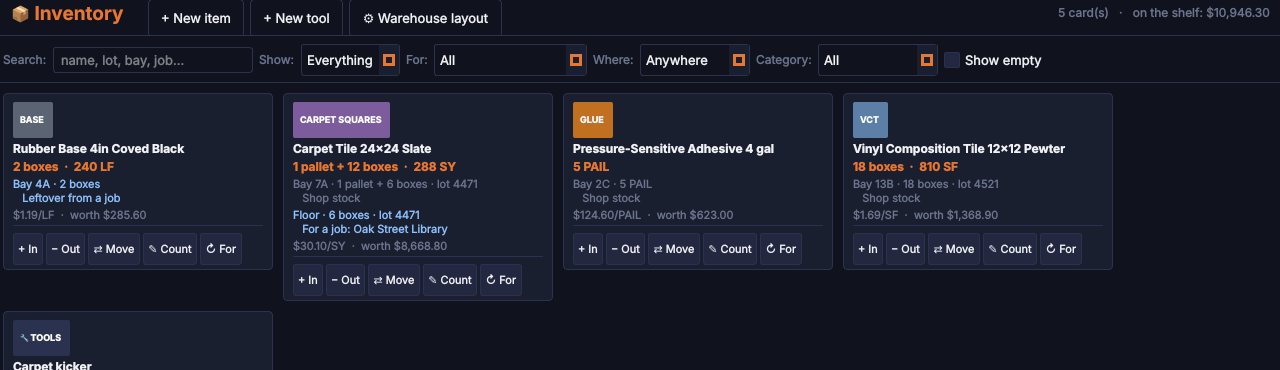
The warehouse works like a library: when something comes in you log it in, and when it goes out you log it out. TCE keeps the count, where it is, who it's for and which dye lot it is.
A card for every material and tool
Each card shows how much is on hand in its packaging and its unit, like 1 pallet + 12 boxes · 288 SY, then where it sits and who it's for, line by line.
- Shop stock: free to use on anything.
- For a job: bought for that job, even one that isn't in TCE yet.
- Leftover from a job: handy for small jobs.
- Owner's attic stock: belongs to the building owner, not you.
+ In and − Out
How many, where it went, what it's for, and the dye lot.
Move and Count
Moved to another bay, or the shelf doesn't match? Type what's really there.
Your racks
Set up your bays and levels once, like 13B, plus spots like Floor, Staging and Yard.
Tools
Check tools out to a person and a job, and back in with their condition.
History
Every in, out and move on a card, with who did it and when.
Find it fast
Search by name, lot, bay or job, and filter by what it's for or where it sits.
Warehouse logins never see costs
Set up a warehouse login for the people on the shop floor. They see only Inventory: no jobs, no costs, no settings. The office sees what the shelf is worth. On the tablet, a warehouse login logs material right where it sits.
Tablet
The same jobs on the site and on the shop floor
The TCE tablet app reads the same jobs as the office PCs. Your PMs check a job from the site, and your warehouse logs material where it sits.
Every job, in your pocket
Overview, scope, materials, labor, alternates and subs, change orders, purchase orders, billing, submittals and contacts for every job.
Notes and photos from the site
Add a note and pin it to the office dashboard. Take a photo and it lands in the job's Photos folder.
Calendar and crew
The company calendar and crew board, the same as on the office PCs.
Warehouse mode
A warehouse login sees inventory only, with no costs. Log material in, out and moved right from the shelf.
Same sign-in as the PC
Use the same user name and password you use in the office.
Updates itself
Tap Check for update and the new version installs from inside the app.
Your files, your choice
Keep jobs where you want
Your own shared Dropbox, Google Drive or OneDrive folder.
On your own office computers. Coming
TCE Cloud, with nothing to set up. Coming
Any of these can keep a daily backup on a drive at your shop.
Questions
What you'd ask before switching
Learn it fast
Nobody wants to learn new software on a live bid. TCE comes with three ways to learn it.
Practice Mode
A complete made-up job, built three ways: on bid day, after it's awarded, and finished. Click around, change anything and reset it. Your real jobs are never touched.
How-To guide
A step-by-step guide with pictures for every screen, built into the program. Print it as a binder if you like paper.
Help on every screen
Every screen has a "How to use this screen" button, and every button tells you what it does when you point at it.
What does it cost?
It depends on how many people in your office will use it. Request a demo and we'll walk you through the options.
What do I need to run it?
A Windows 10 or 11 PC for the office. For the field and the warehouse, any Android tablet. iPad is coming.
Does it work with my plans?
If the plans are a PDF, yes. Import the whole set, name each sheet, and set each sheet's scale.
How does my whole office use it?
Everyone points TCE at the same shared folder, so the office sees the same jobs, calendar, crew and library. Each person has their own sign-in, and warehouse logins see inventory only, with no costs.
Where are my jobs kept? Are they mine?
Your jobs are ordinary files in your own folder: the job, its plans, and every proposal, change order and invoice as Word documents. Keep them in your own Dropbox, Google Drive or OneDrive folder today. Your own office computers and TCE Cloud are coming.
Does it need the internet?
TCE runs on your PC, so you can work with no internet. Your shared folder catches up when you're back online.
Can I put my own products and prices in?
Yes. Your material library keeps your products and prices for every job, and a built-in catalog fills in product lines and colors so you don't type them.
Who helps me when I get stuck?
The people who built it, who also run a flooring company.
Request a demo
See it on one of your own jobs
We're opening Tight Cut Estimating to a small group of commercial flooring contractors first. Tell us about your company and we'll set up a walk-through.